Status
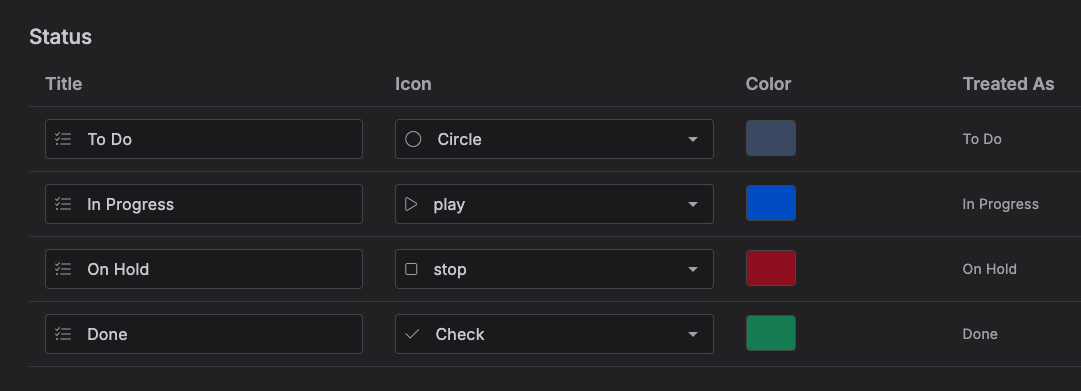
A status is a label you assign to task/kanban items -- like "To Do," "In Progress," or a custom one you create -- to track where an item stands. The Status tab is where you manage them.
Accessing the Status tab
Go to Settings → Status.
Managing statuses
The tab shows a table of your statuses -- Title, Icon, Color, and Status Type -- sorted by their internal order, then title. There's no drag-to-reorder in this UI.
- Add a status -- click Add Status, fill in a title, icon, and color, then Save. All three are required.
- Edit a status -- change its title, icon, or color inline, then Save.
- Delete a status -- click the trash icon and confirm, for statuses that have one (see below).
There's no limit on how many statuses you can create, and duplicate titles are allowed.
Built-in statuses
Every account starts with five built-in statuses -- N/A, To Do, In Progress, On Hold, and Done -- shown with a Status Type in the table. Status Type isn't something you set: it's only ever assigned by Kalendi to these built-in statuses, and it's what makes them behave specially rather than being purely a display label. In particular, Kalendi treats an item whose status has type Done as complete -- it factors into subtask completion rules (checking off the last open subtask moves its parent to Done; unchecking one demotes it back), scheduled auto-complete rules, and the status breakdown shown in Analytics.
Note
Built-in statuses can't be deleted -- there's no delete button for any status that has a Status Type. Custom statuses you create (which never get a Status Type) can be deleted, but not while any item is still using them -- you'll get an error if you try.