Data
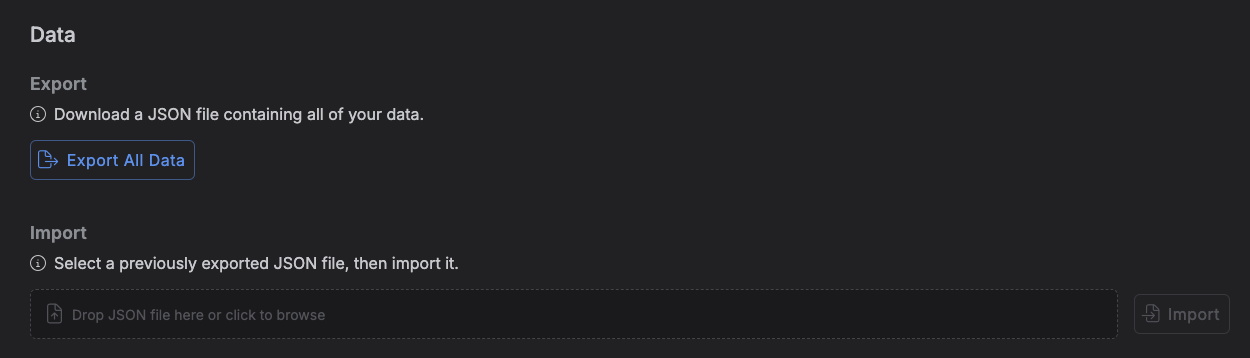
The Data tab lets you export a full JSON backup of your Kalendi data, and import a JSON file back in.
Accessing the Data tab
Go to Settings → Data.
Export
Click Export All Data to download a kalendi-data-export-YYYY-MM-DD.json file containing
your notebooks, priorities, task statuses, item types, clients, notes, projects, project
milestones, and items -- for every project you own. Image fields (like item type background
images) aren't included in the export.
Import
Choose a previously exported .json file and click Import.
Import merges into your account -- it doesn't replace it
Importing is not a "restore to this backup" operation. Each row in the file is matched to your account by its id: a row that matches an existing record updates it, and a row that doesn't creates a new one. Nothing already in your account is ever deleted by an import. There's no confirmation step before this happens, so importing an old export can silently overwrite newer changes to matching records.
A row that belongs to a different account is skipped rather than imported or overwritten.
Limits and errors
- The file must be valid UTF-8 JSON, no larger than 20 MB.
- Each data section (items, projects, and so on) is capped at 50,000 rows.
- Files that fail these checks, or that aren't valid JSON, are rejected before anything is imported.