Projects
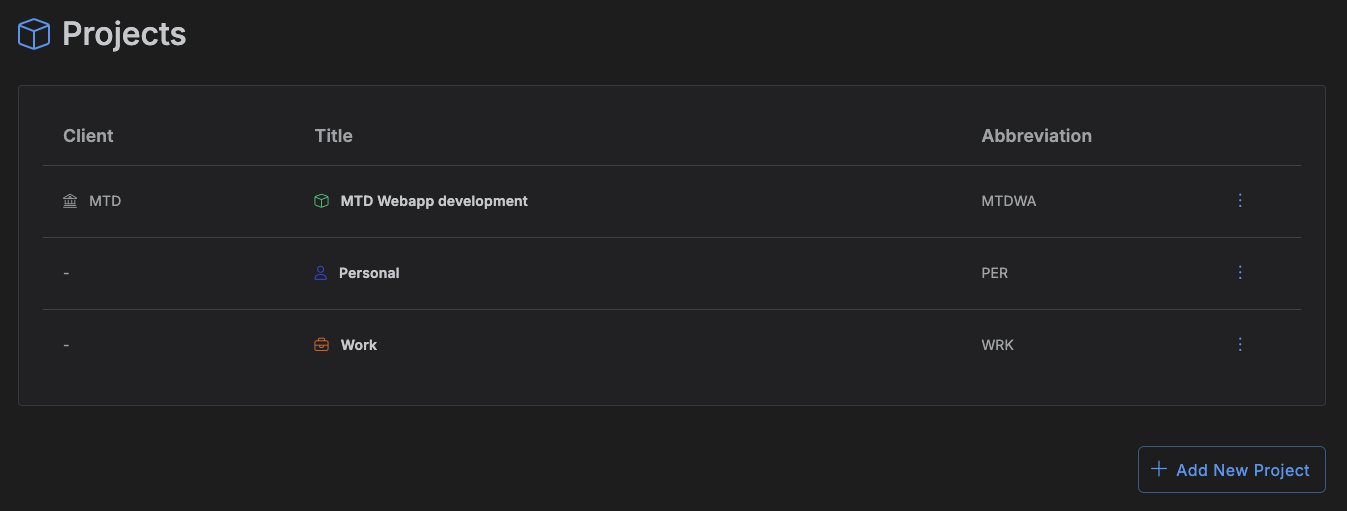
A project groups your items together, with its own title, abbreviation, icon, and color. You can optionally attach a project to a client, and track milestones within it.
Accessing Projects
Click Projects in the left toolbar. Clicking a project's row opens its detail page.
Managing projects
The page lists your projects -- Client, Title, and Abbreviation -- with an Edit/Delete menu on each row.
- Add a project -- click Add New Project, then set its title (required), abbreviation, client, icon, and color.
- Edit a project -- open the row menu and choose Edit to change any of those fields.
- Delete a project -- open the row menu, choose Delete, and confirm. This isn't available while the project still has items in it -- move or delete them first.
The project detail page
Clicking into a project shows its milestones -- each with a title, icon, color, and a start and end date. Add items to a milestone directly from there, and see how many items it has and their status at a glance.
The default project
Every account starts with a "Personal" project marked as its default -- for example, the
.ics calendar importer uses it when you don't choose a
different project.
Attaching a client
Pick a client in a project's Client field to associate the project with one of your clients. One client can have several projects attached to it.