Change Password
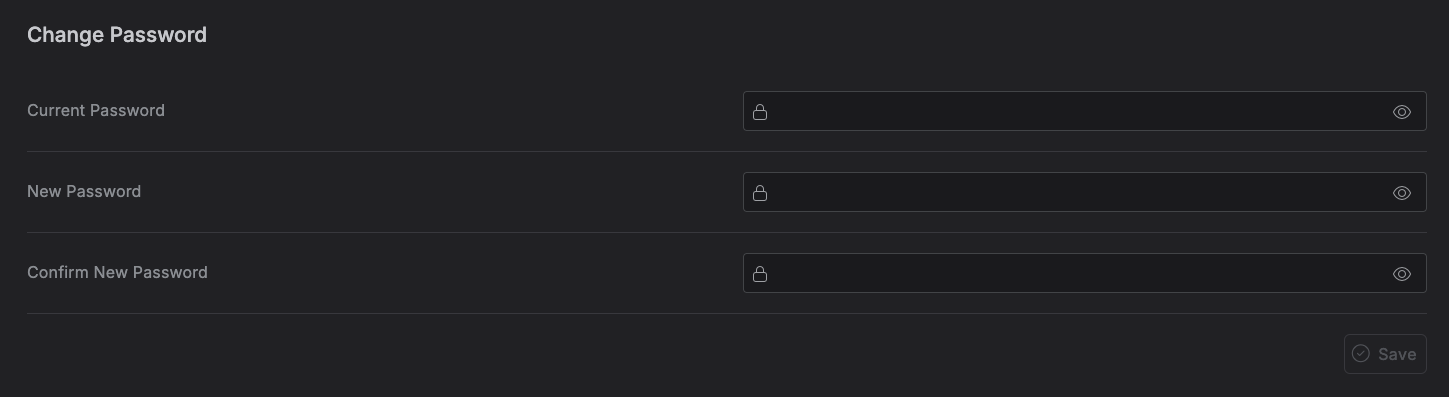
The Change Password tab is where you set a new password for signing in -- separate from your profile details on the User Account tab.
Accessing the Change Password tab
Go to Settings → Change Password.
Note
This tab only appears if your account signs in with a password. If you signed up through Google (or another provider), there's no password to change, so the tab is hidden.
Changing your password
Fill in:
- Current Password -- your existing password, to confirm it's really you.
- New Password -- the password you want to switch to.
- Confirm New Password -- must match New Password exactly.
Click Save, which stays disabled until all three fields are filled in and New Password matches Confirm New Password. On success, the fields clear and a confirmation message appears. If your current password is wrong, an error message appears and nothing changes.