Priority
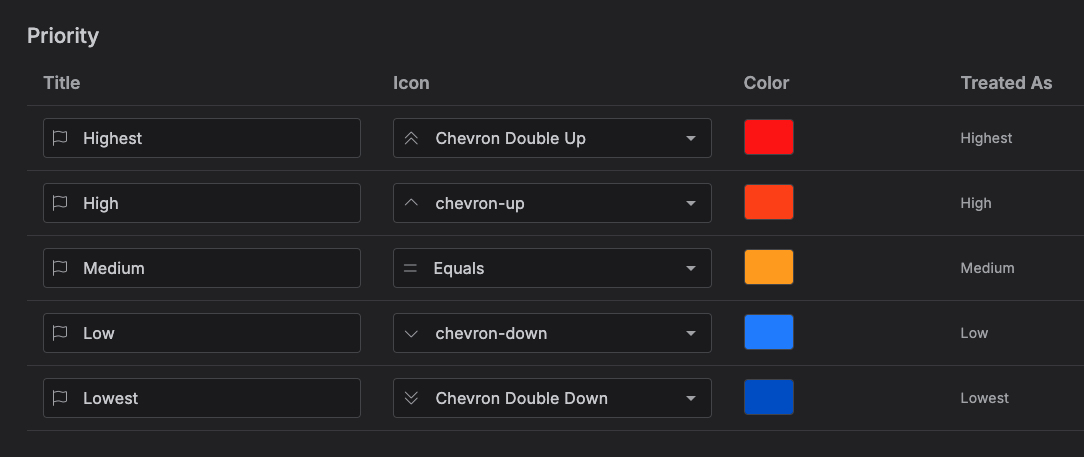
A priority is a label you assign to items -- like "Highest," "Medium," or a custom one you create -- to flag how important they are. The Priority tab is where you manage them.
Accessing the Priority tab
Go to Settings → Priority.
Managing priorities
The tab shows a table of your priorities -- Title, Icon, Color, and "Treated As" -- sorted by their internal order, then title.
- Add a priority -- click Add Priority, fill in a title, icon, and color, then Save. All three are required.
- Edit a priority -- change its title, icon, or color inline, then Save.
- Delete a priority -- click the trash icon and confirm.
There's no limit on how many priorities you can create, and duplicate titles are allowed.
Built-in priorities
Every account starts with five built-in priorities -- Highest, High, Medium, Low, and Lowest -- shown with a "Treated As" value in the table. Unlike Status's equivalent field, this is purely a label: it isn't editable, and it has no effect on how Kalendi behaves anywhere -- it doesn't affect sorting, filtering, or analytics. It exists only to show which built-in priority a row originally was.
Note
Priorities behave differently from statuses here: any priority can be deleted, including the built-in ones -- there's no protection like Status has for its built-in entries. The only thing that blocks a delete is an item still using that priority; you'll get an error if you try to delete one that's in use.