Quick Add Item
Quick Add is a one-line, natural-language way to create an item -- type a sentence like "Dinner with Sarah tomorrow at 7pm" and Kalendi works out the title, date, time, and more on its own. It's a separate, lighter dialog from Create/Edit Item -- there's no project/priority/status pickers or description box here, just the one text field.
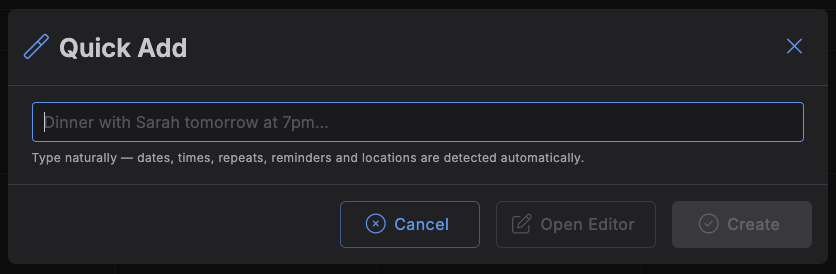
Opening the dialog
Press A, or click the wand icon in the top toolbar. This is different from the + button /
C shortcut, which opens the full Create/Edit Item dialog
instead.
Typing an item
As you type, a live preview line below the field shows what Kalendi has understood so far -- title, date, time (or "All day"), repeat, location, and item type, in that order, showing only the pieces it detected. Anything it doesn't recognize as a date/time/repeat/reminder/location/item type is left in as part of the title.
What it picks up:
- Dates --
today,tomorrow,tonight,next Monday/this Friday/ a bare weekday,in 3 days,next week,March 5th,2026-07-15,7/15/2026, and similar. No date found defaults to today. - Times --
at 3pm,3:30pm,15:00,noon,midnight, ranges like3pm to 5pm, and durations likefor 2 hours. No time found defaults to 9am with a 1-hour duration (7pm for "tonight"). - Repeat --
daily,weekly,monthly,annually,every weekday,every weekend, orevery Monday(any weekday name). - Reminder -- phrases like
remind me 10 minutes before,15 min reminder,remind me at event time, ordon't remind me. - All day -- the phrase
all dayorall-day. - Location -- a trailing
at <place>orin <place>at the end of the sentence. - Item type -- matched by name against your configured item types (e.g. typing "meeting" picks up the Meeting type's icon, colors, and background automatically).
Anything you don't specify falls back to your usual defaults (Project "Personal," Priority "Medium," Status your default status, Item Type "Task").
Creating the item
- Create (or press
Enter) creates the item immediately, with no extra confirmation step. On success, the field clears and the dialog closes shortly after; on failure, your text stays put so you can retry. - Open Editor hands off everything parsed so far into the full Create/Edit Item dialog, without saving anything yet -- use this when you need to set a description, guests, subtasks, files, or override a default the parser got wrong.
- Cancel, or
Escape, closes the dialog and discards the text.