Create/Edit Item
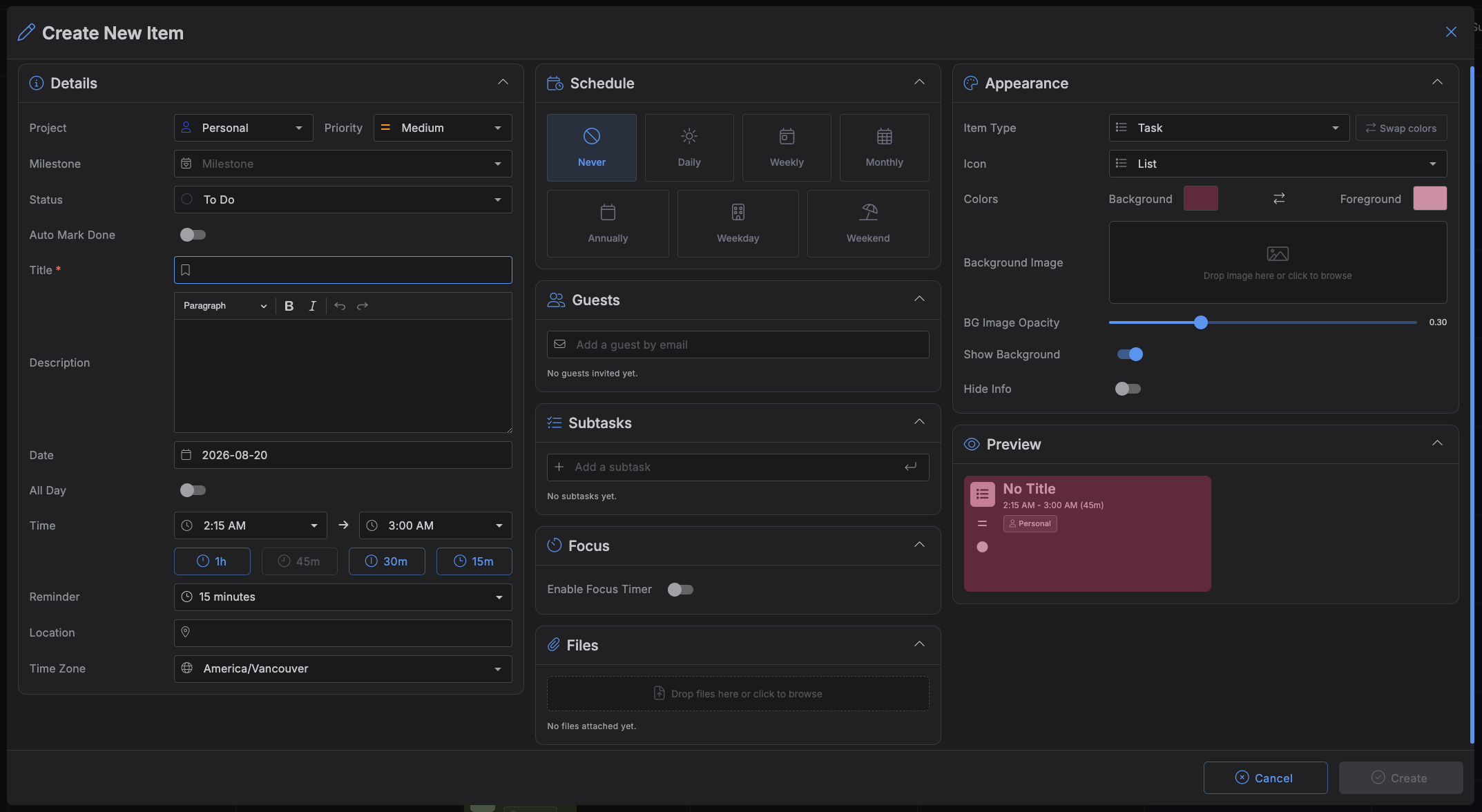
The Create/Edit Item dialog is where you build out or edit a full Calendar or Kanban item -- title, schedule, guests, subtasks, files, and appearance all live here. It's the same dialog whether you're starting from scratch or opening an existing item, and it's also where Quick Add and a dragged note both hand off to when you need more than a one-line entry.
Opening the dialog
- Click the + button in the top toolbar, or press
C, to open a blank item. - Click the quick-add wand (
A) to open Quick Add first, then click Open Editor to hand off here with your typed text already parsed into fields. - Click and drag on an empty slot in the calendar grid to create an item spanning that time, or double-click a slot for a default-length item.
- Click an existing item on the Calendar or Kanban board to edit it.
- Drag a note from the Notes panel onto the calendar grid or a Kanban column -- its title becomes the item's title (and, on the grid, its date/time). The source note isn't deleted until you actually save the new item; canceling leaves the note untouched.
The dialog's title and icon change to match the mode: Create New Item for a blank item, Edit Item for an existing one. New items start with sensible defaults (Project "Personal", Priority "Medium", Item Type "Task", Reminder "15 minutes", a start time rounded to the next 15 minutes with a 1-hour duration) so you rarely have to touch every field.
Details
| Field | Type | Notes |
|---|---|---|
| Project | Dropdown | Defaults to "Personal." Shows the project's icon/color, and its client name if it has one. |
| Priority | Dropdown | Defaults to "Medium." |
| Milestone | Dropdown | Options are limited to the selected project's milestones; changing Project clears Milestone. |
| Status | Dropdown | Hidden for repeating items -- their status is set per-occurrence from the Calendar/Kanban view instead of here. |
| Auto Mark Done | Toggle | Off by default. |
| Title | Text | Required. Autofocused when the dialog opens; pressing Enter here saves the item. |
| Description | Rich text | Bold, italic, headings, links, undo/redo. Resizable by dragging its bottom edge. |
| Date | Date picker | Sets the day for both the start and end time, keeping whatever times were already set. |
| All Day | Toggle | Off by default. Turning it on hides Time, the quick-duration buttons, and Time Zone, and forces the reminder to "Don't remind." Turning it off restores those fields and resets the reminder to "15 minutes." |
| Time | Two time dropdowns | Hidden when All Day is on. Steps in 15-minute increments; scroll the mouse wheel over either field to change it. Changing the start time keeps the duration; changing the end time pulls the start back if it would land at or before the new end. |
| Quick duration | Four buttons: 1h / 45m / 30m / 15m | Hidden when All Day is on. Sets the end time to start + that duration; the button matching the current duration is disabled. |
| Reminder | Dropdown | Hidden when All Day is on. Options: Don't remind, At event time, 5 minutes, 10 minutes, 15 minutes (default), 30 minutes, 1 hour -- all "before start time" except "At event time." |
| Location | Free-text search | Type 3+ characters for live address suggestions; you can also just type anything and keep it, since a suggestion isn't required. |
| Time Zone | Dropdown | Hidden when All Day is on. If an item's time zone differs from your account's, its times are shown/edited in the item's own zone and converted back on save. |
Schedule
Repeat -- pick one: Never, Daily, Weekly, Monthly, Annually, Every Weekday, or Every Weekend.
- Repeat every -- shown for Daily/Weekly/Monthly/Annually; an interval number (every 2 weeks, every 3 months, and so on).
- Repeat on -- shown only for Weekly (and only for non-habit items): a switch per day of the week, so you can combine it with the interval for something like "every 2 weeks, on Monday, Wednesday, and Friday."
- Ends on -- a switch plus a date picker, shown for any repeating item. Turning it on defaults to 7 days out; turning it off makes the series repeat indefinitely.
Repeating items are marked with a rotating-arrows icon on their card.
Tracking a habit (Action)
Shown once an item repeats in some form. This turns a repeating item into a goal tracker -- reading a book, watching a series, learning something, or attending a class.
| Field | Notes |
|---|---|
| Action Type | N/A (default, no tracking), Reading a Book, Watching a TV Series, Learning, or Attending a Class. Picking one auto-fills Total/Count with a starting suggestion (500/25 for a book, 10/1 for the others) and clears the weekly day-of-week and Ends On fields, since a habit isn't tied to specific weekdays. |
| Total | The overall goal -- total pages, episodes, lessons, or classes. |
| Per-occurrence count | How much counts as "done" for a single occurrence -- e.g. pages to read that day. Can't exceed the Total. |
Saving is blocked if you've picked an Action Type other than N/A but left Total or the per-occurrence count empty.
The progress bar and per-occurrence check button aren't in this dialog -- they show up on the item's card on the Calendar grid itself, letting you mark a given day's occurrence done (or undo it) directly. The Preview panel on the right of this dialog (see Appearance below) mirrors that same progress bar live as you adjust Total and Count.
Guests
Guests are added by email -- there's no requirement that the address belong to a Kalendi account.
- Type an email into Add a guest by email and press
Enter, or pick from suggestions drawn from guests you've invited on other items. Invalid addresses and duplicates are rejected. - Each guest row shows their avatar (if their email matches a Kalendi account), their email, a response status, and a remove button. Response statuses are Awaiting response, Accepted, Declined, or Tentative -- guests set these themselves via a link Kalendi sends them, independent of this dialog.
- Guests are saved along with the rest of the item when you click Save -- there's no separate "invite" action.
- Saving changes to an item that already has guests prompts Notify Guests?, letting you resend them the updated details.
Subtasks
- Type into Add a subtask and press
Enter(or click the insert button) to add one. - Toggle a subtask's switch to mark it done; done subtasks show with strikethrough text.
- Double-click a subtask's title to rename it --
Ctrl/Cmd+Enteror clicking away saves it,Escapereverts without saving. - Click the × on a row to remove it, no confirmation needed.
On an existing item, every change here saves immediately -- it doesn't wait for the dialog's own Save button. On a new item, subtasks are held until you save the item itself.
If an item's status is a Done-type status and you uncheck one of its subtasks, the item's status moves back to an In Progress status automatically, and the Status field on the Details tab updates to reflect it right away.
Files
- Drop files onto the upload area, or click it to browse -- both single and multi-file work.
- Up to 5 files per item. Extra files beyond that in one batch are dropped with a warning.
- On an existing item, each file uploads immediately on drop. On a new item, files are held as pending and uploaded once the item is created; if any fail to attach, the item is still saved and you're told which files to try again.
- Click a file's name to open/download it. Click the trash icon to delete it, with confirmation.
Appearance
| Field | Notes |
|---|---|
| Item Type | Picking a type auto-applies that type's icon, colors, background image, and opacity to the item, overwriting anything set manually. A swap colors button next to it flips which of the type's two colors becomes foreground vs. background before they're applied. |
| Icon | Searchable icon picker. |
| Colors | Background and Foreground color swatches, with a button to swap the two. |
| Background Image | Drag-and-drop or click-to-browse image upload, with a thumbnail preview. |
| BG Image Opacity | A 0-100% slider (default 30%). |
| Show Background | On by default -- whether the background image/color actually renders on the item. |
| Hide Info | Off by default. Turning it on reveals a second toggle, Hide Icons, to also hide the item's icons on the calendar. Turning Hide Info back off clears Hide Icons too. |
Preview shows a live, non-interactive render of the item exactly as it'll appear on the calendar, updating instantly as you change any field above (or in Details/Schedule).
Saving, deleting, and exporting
- Create / Update saves the item. It's disabled while Title is empty, while a chosen Action Type is missing its Total/Count, or -- for an existing item -- when nothing has actually changed since you opened the dialog.
- Cancel, or press
Escape, to close without saving. - Download as ICS exports the item as a standard
.icsfile. Only shown for items that have already been saved.
Note
There's no Delete button in this dialog. To delete an item, select it on the Calendar grid or
Kanban board and press Delete (or use its right-click menu), then confirm.
Keyboard shortcuts
| Shortcut | Effect |
|---|---|
Enter (in Title) |
Save the item |
Escape |
Close the dialog without saving |
Ctrl/Cmd + Enter (while editing a subtask title) |
Commit that subtask's title |
Escape (while editing a subtask title) |
Revert that subtask's title without saving |