Milestone
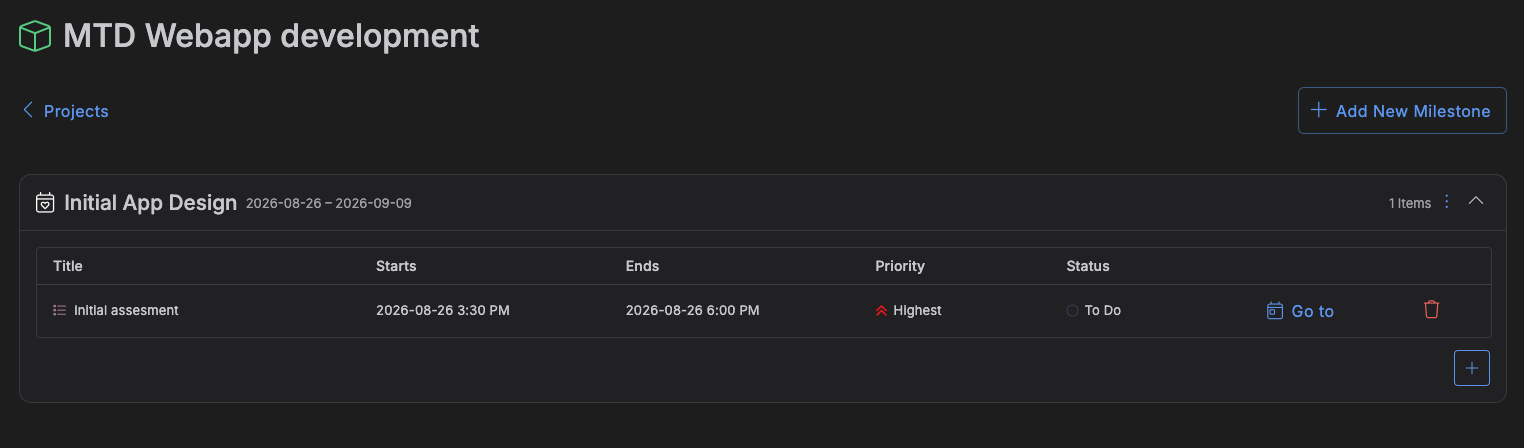
A milestone groups a project's items around a phase or sub-goal, with its own title, icon, color, and a start/end date range.
Accessing milestones
Milestones live on a project's detail page -- click a project in Projects to open it. Each of that project's milestones appears there as its own section.
Managing milestones
- Add a milestone -- click Add New Milestone, then set Color, Title (required), Icon, Starts At, and Ends At. New milestones default to Starts At = today and Ends At = two weeks out, so typing just a title is enough to enable Create; Ends At can't be set earlier than Starts At.
- Edit a milestone -- open the ⋮ menu on its section header, choose Edit, change any field, then Update. Update is disabled until something's actually changed.
- Delete a milestone -- open the ⋮ menu, choose Delete, and confirm. This doesn't require the milestone to be empty first: any items still assigned to it simply lose that milestone (it's cleared, not the item) rather than being blocked or deleted themselves.
The milestone section
Each milestone's section on the project detail page shows its icon and color, title, date range, and an item count. Its table lists Title, Starts At, Ends At, Priority, and Status for every item in it, for a quick read of where things stand. Click the + button at the bottom to add an item straight into it -- it opens the Create/Edit Item dialog with this milestone's project (and the milestone itself) already set.
Click a row to open that item in the full Create/Edit Item dialog, or right-click-and-hold it to open Hotbox instead, for a quick Status or Priority change (or to jump to a link, or export the item) without leaving the table.
Attaching items
An item is put into a milestone from its own Details -- the Milestone dropdown in the Create/Edit Item dialog, whose options are limited to the selected Project's milestones. Changing an item's Project clears its Milestone, since milestones never cross projects.