Item Type
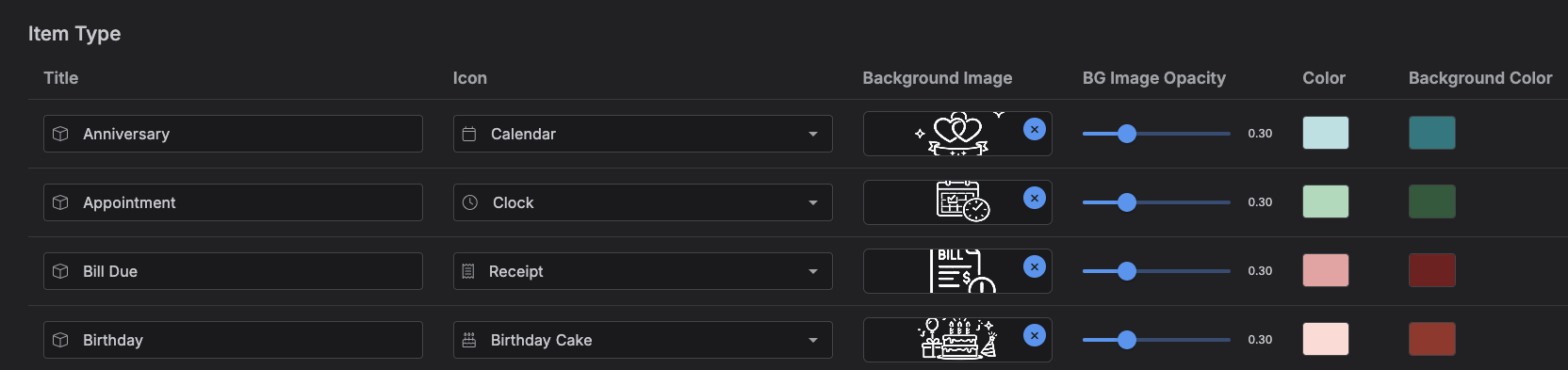
An item type is a label you attach to items -- like "Meeting," "Birthday," or "Task" -- that gives them an icon, a background image, and a color scheme. In other words, item types are presets that let you change how your items look without setting an icon, image, and color scheme on each one by hand. Kalendi seeds every new account with about 40 item types to start from (Event, Task, Birthday, Workout, and so on); the Item Type tab is where you manage them.
Accessing the Item Type tab
Go to Settings → Item Type.
Managing item types
The tab shows a table of your item types -- Title, Icon, Background Image, Background Image Opacity, Color, and Background Color -- sorted alphabetically.
- Add an item type -- click Add Item Type, fill in a title, icon, color, and background color (a background image and its opacity are optional), then Save. Title, icon, color, and background color are all required before Save is enabled.
- Edit an item type -- change any field inline, then Save. An undo icon appears next to unsaved edits so you can revert them before saving.
- Delete an item type -- click the trash icon and confirm. This isn't available while items are using it (see below).
Uploaded background images are converted to WebP and resized to a maximum of 720×450. There's no limit on how many item types you can create, and duplicate titles are allowed.
Deleting an item type in use
An item type that's still assigned to any item can't be deleted -- you'll get an error telling you it's used by items. Reassign or delete those items first, then delete the item type.
Note
Unlike a notebook, no item type is marked as "default" in Kalendi's data -- there's no
default flag or UI for one here. The .ics calendar importer happens
to look for an item type titled "Event" when assigning imported events a type, but that's a
naming convention that importer relies on, not a setting you manage on this tab.