Note
The Notes panel is a quick-capture sidebar for jotting things down without committing to a full calendar item -- and for turning a note into one the moment it's ready.
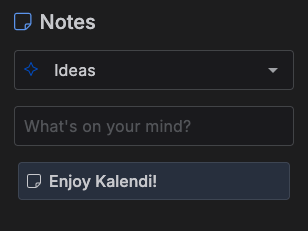
Opening the panel
Click the notes icon in the top toolbar, or press N, to open the Notes panel alongside the
Calendar or Kanban board.
Press N (or click the icon) again to close it. It's only available in those two views.
Unlike the other dialogs, the Notes panel isn't a modal or a floating popup -- it's a fixed sidebar that pushes the grid/board over, so you can keep it open while you work.
Notebooks
Every note belongs to exactly one notebook. A dropdown at the top of the panel picks which notebook's notes are shown -- it starts on your default notebook, and only that notebook's notes are listed at a time. Switching notebooks here doesn't create or edit notebooks themselves; manage those under Settings → Notebook.
Creating a note
Type into What's on your mind? and press Enter. A note has a single field -- its title, as
one line of plain text; there's no separate description or rich text. New notes are added to the
top of the list, filed under whichever notebook is currently selected.
Editing and deleting a note
- Double-click a note's text to rename it.
Enter(or clicking away) saves the change;Escapereverts it. An empty title is never saved. - Hover over a note to reveal a trash-can icon; click it to delete the note immediately -- there's no confirmation step.
Turning a note into a calendar item
Drag a note out of the panel and drop it onto:
- The Month grid -- creates an item on that day, starting at 9am with a 1-hour duration.
- The Day/Week grid -- creates an item starting at the exact time you dropped it, snapped to the nearest 15 minutes, with a 1-hour duration.
- A Kanban column -- creates an item with that column's status already set, and no date.
In every case, the note's title becomes the new item's title, and the Create/Edit Item dialog opens with those fields already filled in so you can adjust anything else before saving. The note itself is only deleted once you save the new item -- if you cancel instead, the note is left exactly as it was.