Plug-in
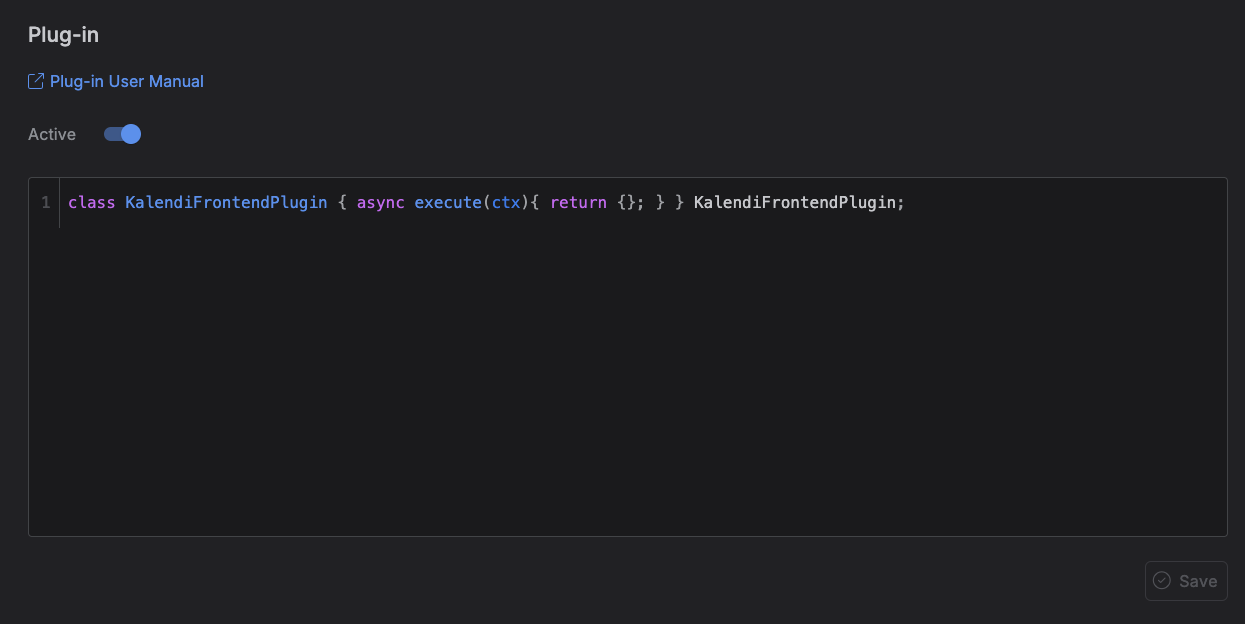
The Plug-in tab lets you write a small piece of JavaScript that fetches data from an external API and turns it into calendar items automatically -- for example, pulling public holidays, or any other data source that publishes an API, and having it show up on your calendar without manual entry.
Accessing the Plug-in tab
Go to Settings → Plug-in.
The editor
The page gives you:
- Active -- a switch that turns your plugin on or off. Toggling this off stops the plugin from running without deleting your code.
- Code editor -- a syntax-highlighted JavaScript editor where you write your plugin's source.
- Save -- stays disabled until you've made a change, then saves your code and Active state. If saving fails, an error message appears.
Writing a plugin
A plugin is a small JavaScript class with an async execute(ctx) method. The class can be named anything -- Kalendi detects it automatically. A new account starts with this placeholder:
What ctx gives you
execute() receives a context object with:
| Field | Description |
|---|---|
todayDate |
Today's date |
userAccount |
The signed-in user's account |
userAccountSettings |
The user's account settings |
projects |
The user's projects |
itemTypes |
The user's item types |
itemTaskStatuses |
The user's task statuses |
itemPriorities |
The user's priority levels |
No auth tokens, API keys, or other secrets are included in ctx -- your plugin only ever sees the data listed above.
Here's a real (anonymized) example of what ctx looks like, with itemTypes trimmed to a few
entries -- a real account typically has many more:
{
    "todayDate": "2026-08-21",
    "userAccountSettings":
    [
        { "id": "a1b2c3d4-e5f6-4000-9000-000003000000", "key": "Date Format", "value": "YYYY-MM-DD" },
        { "id": "a1b2c3d4-e5f6-4000-9000-000004000000", "key": "Time Zone", "value": "America/Vancouver" },
        { "id": "a1b2c3d4-e5f6-4000-9000-000005000000", "key": "Quotes", "value": "All" },
        { "id": "a1b2c3d4-e5f6-4000-9000-000006000000", "key": "Show Items Created by Plug-in in Month View", "value": "True" },
        { "id": "a1b2c3d4-e5f6-4000-9000-000007000000", "key": "Language", "value": "en" },
        { "id": "a1b2c3d4-e5f6-4000-9000-000008000000", "key": "Show Action Based Repeated Items in Kanban", "value": "True" },
        { "id": "a1b2c3d4-e5f6-4000-9000-000009000000", "key": "Can Operate Frontend Plugin", "value": "True" },
        { "id": "a1b2c3d4-e5f6-4000-9000-00000a000000", "key": "Theme", "value": "Dark" },
        { "id": "a1b2c3d4-e5f6-4000-9000-00000b000000", "key": "Show Action Based Repeated Items in Month View", "value": "True" },
        { "id": "a1b2c3d4-e5f6-4000-9000-00000c000000", "key": "Show Client", "value": "True" },
        { "id": "a1b2c3d4-e5f6-4000-9000-00000d000000", "key": "Show Repeated Items in Kanban", "value": "False" },
        { "id": "a1b2c3d4-e5f6-4000-9000-00000e000000", "key": "Show Repeated Items in Month View", "value": "False" },
        { "id": "a1b2c3d4-e5f6-4000-9000-00000f000000", "key": "Show on Launch", "value": "Week" }
    ],
    "userAccount":
    {
        "avatar": "https://media.kalendi.app/media/user_account/a1b2c3d4-e5f6-4000-9000-000002000000/account/images/avatar/xxxxxxxxxxxxxxxxxxxxxxxx.webp",
        "first_name": "Jamie",
        "last_name": "Rivera",
        "mobile_phone_number": null,
        "avatar_url": null,
        "is_signed_by_auth_provider": false,
        "id": "a1b2c3d4-e5f6-4000-9000-000001000000",
        "email": "jamie.rivera@example.com",
        "has_password_login": true
    },
    "projects":
    [
        {
            "order": 0,
            "is_default": true,
            "is_archived": false,
            "title": "Personal",
            "abbreviation": "PER",
            "font_awesome_icon": "fa-light fa-user",
            "icon": null,
            "color": "#4254F5",
            "client_id": null,
            "id": "a1b2c3d4-e5f6-4000-9000-000012000000"
        },
        {
            "order": 1,
            "is_default": false,
            "is_archived": false,
            "title": "Work",
            "abbreviation": "WRK",
            "font_awesome_icon": "fa-light fa-briefcase",
            "icon": null,
            "color": "#E87B27",
            "client_id": null,
            "id": "a1b2c3d4-e5f6-4000-9000-000013000000"
        }
    ],
    "itemTypes":
    [
        {
            "title": "Anniversary",
            "font_awesome_icon": "fa-light fa-calendar",
            "icon": null,
            "color": "#C5E4E7",
            "background_color": "#38838A",
            "background_image": "https://media.kalendi.app/media/user_account/a1b2c3d4-e5f6-4000-9000-000002000000/product/item_types/a1b2c3d4-e5f6-4000-9000-000014000000/background_images/xxxxxxxxxxxxxxxxxxxxxxxx.webp",
            "background_image_opacity": 0.3,
            "id": "a1b2c3d4-e5f6-4000-9000-000014000000"
        },
        {
            "title": "Appointment",
            "font_awesome_icon": "fa-light fa-clock",
            "icon": null,
            "color": "#BADEC3",
            "background_color": "#396543",
            "background_image": "https://media.kalendi.app/media/user_account/a1b2c3d4-e5f6-4000-9000-000002000000/product/item_types/a1b2c3d4-e5f6-4000-9000-000015000000/background_images/xxxxxxxxxxxxxxxxxxxxxxxx.webp",
            "background_image_opacity": 0.3,
            "id": "a1b2c3d4-e5f6-4000-9000-000015000000"
        }
    ],
    "itemTaskStatuses":
    [
        { "order": 0, "title": "To Do", "font_awesome_icon": "fa-light fa-circle", "icon": null, "color": "#42526E", "id": "a1b2c3d4-e5f6-4000-9000-000017000000", "status_type": "To Do" },
        { "order": 1, "title": "In Progress", "font_awesome_icon": "fa-light fa-play", "icon": null, "color": "#0052CC", "id": "a1b2c3d4-e5f6-4000-9000-000018000000", "status_type": "In Progress" },
        { "order": 2, "title": "On Hold", "font_awesome_icon": "fa-light fa-stop", "icon": null, "color": "#99031F", "id": "a1b2c3d4-e5f6-4000-9000-000019000000", "status_type": "On Hold" },
        { "order": 3, "title": "Done", "font_awesome_icon": "fa-light fa-check", "icon": null, "color": "#00875A", "id": "a1b2c3d4-e5f6-4000-9000-00001a000000", "status_type": "Done" }
    ],
    "itemPriorities":
    [
        { "order": 0, "title": "Highest", "font_awesome_icon": "fa-solid fa-chevron-double-up", "icon": null, "color": "#FF0000", "id": "a1b2c3d4-e5f6-4000-9000-00001b000000", "priority_type": "Highest" },
        { "order": 1, "title": "High", "font_awesome_icon": "fa-solid fa-chevron-up", "icon": null, "color": "#FF4500", "id": "a1b2c3d4-e5f6-4000-9000-00001c000000", "priority_type": "High" },
        { "order": 2, "title": "Medium", "font_awesome_icon": "fa-solid fa-equals", "icon": null, "color": "#FFA500", "id": "a1b2c3d4-e5f6-4000-9000-00001d000000", "priority_type": "Medium" },
        { "order": 3, "title": "Low", "font_awesome_icon": "fa-solid fa-chevron-down", "icon": null, "color": "#2684FF", "id": "a1b2c3d4-e5f6-4000-9000-00001e000000", "priority_type": "Low" },
        { "order": 4, "title": "Lowest", "font_awesome_icon": "fa-solid fa-chevron-double-down", "icon": null, "color": "#0052CC", "id": "a1b2c3d4-e5f6-4000-9000-00001f000000", "priority_type": "Lowest" }
    ]
}
What to return
Return an object with an item_data array. Each entry can set only these fields:
| Field | Description |
|---|---|
title |
The item's title |
starts_at |
Start date/time |
ends_at |
End date/time |
reminder |
A reminder for the item |
font_awesome_icon |
An icon for the item |
all_day |
Whether the item is an all-day item |
reminder must be exactly one of: Don't remind, At event time, 5 minutes, 10 minutes,
15 minutes, 30 minutes, 1 hour. Any other value is silently ignored and the item falls back
to the default reminder.
class KalendiFrontendPlugin
{
    async execute(ctx)
    {
        const response = await fetch('https://api.example.com/events');
        const data     = await response.json();

        return
        {
            item_data:
            [
                {
                    title      : data.eventName,
                    starts_at  : data.startTime,
                    ends_at    : data.endTime,
                    reminder   : '15 minutes',
                    font_awesome_icon : 'fa-light fa-bell',
                }
            ]
        };
    }
}

KalendiFrontendPlugin;
Example: daily weather
This plugin geocodes a city name, pulls today's forecast for it, and adds a single all-day item with the high/low temperature and a weather icon:
class KalendiFrontendPlugin
{
    getWeatherIcon(weatherCode)
    {
        if(weatherCode === 0)
        {
            return 'fa-light fa-sun';
        }

        if(weatherCode <= 3)
        {
            return 'fa-light fa-cloud-sun';
        }

        if(weatherCode <= 48)
        {
            return 'fa-light fa-cloud-fog';
        }

        if(weatherCode <= 67)
        {
            return 'fa-light fa-cloud-rain';
        }

        if(weatherCode <= 77)
        {
            return 'fa-light fa-snowflake';
        }

        if(weatherCode <= 82)
        {
            return 'fa-light fa-cloud-showers-heavy';
        }

        if(weatherCode <= 99)
        {
            return 'fa-light fa-cloud-bolt';
        }

        return 'fa-light fa-cloud';
    }

    async execute(ctx)
    {
        const city = 'Vancouver, BC';

        const geocodeUrl      = `https://geocoding-api.open-meteo.com/v1/search?name=${encodeURIComponent(city)}&count=1`;
        const geocodeResponse = await fetch(geocodeUrl);
        const geocodeData     = await geocodeResponse.json();

        const location = geocodeData.results && geocodeData.results[0];

        if(!location)
        {
            return {};
        }

        const forecastUrl =
            `https://api.open-meteo.com/v1/forecast?latitude=${location.latitude}&longitude=${location.longitude}` +
            `&daily=weathercode,temperature_2m_max,temperature_2m_min&timezone=auto`;

        const forecastResponse = await fetch(forecastUrl);
        const forecastData     = await forecastResponse.json();

        const weatherCode = forecastData.daily.weathercode[0];
        const highTemp     = Math.round(forecastData.daily.temperature_2m_max[0]);
        const lowTemp      = Math.round(forecastData.daily.temperature_2m_min[0]);

        const weatherItem =
        {
            title             : `${city}: ${highTemp}°C / ${lowTemp}°C`,
            starts_at         : `${ctx.todayDate}T00:00:00`,
            ends_at           : `${ctx.todayDate}T00:00:00`,
            all_day           : true,
            reminder          : "Don't remind",
            font_awesome_icon : this.getWeatherIcon(weatherCode),
        };

        const data =
        {
            item_data : [weatherItem]
        };

        return data;
    }
}

KalendiFrontendPlugin;
How it runs
Your plugin executes in an isolated, invisible sandbox once when Kalendi loads, and again whenever
you save changes to it in this Settings tab -- it can't access your cookies, local storage, or
Kalendi's backend directly, only whatever external API you call inside execute(). Navigating the
calendar (changing the date or view) does not re-run it -- items it created stay cached from that
last run until the next page load or save.
CORS restriction
Because the sandbox runs with a null origin, it can only call external APIs that explicitly allow cross-origin requests from a null origin. Some APIs (Google's, for example) reject this and won't work from a plugin. If your plugin's requests are silently failing, this is the first thing to check.
A run that takes longer than 30 seconds is aborted automatically.
Items created by your plugin
Items your plugin creates behave differently from items you add yourself:
- They can't be edited or deleted from the calendar -- Kalendi shows a message explaining the item was created by a plug-in.
- Whether they appear in Month view is controlled separately, under Settings → User Account Settings → Show Items Created by Plug-in in Month View.
To remove items a plugin created, turn the plugin off (or change what it returns) rather than trying to delete the items directly.