Calendar
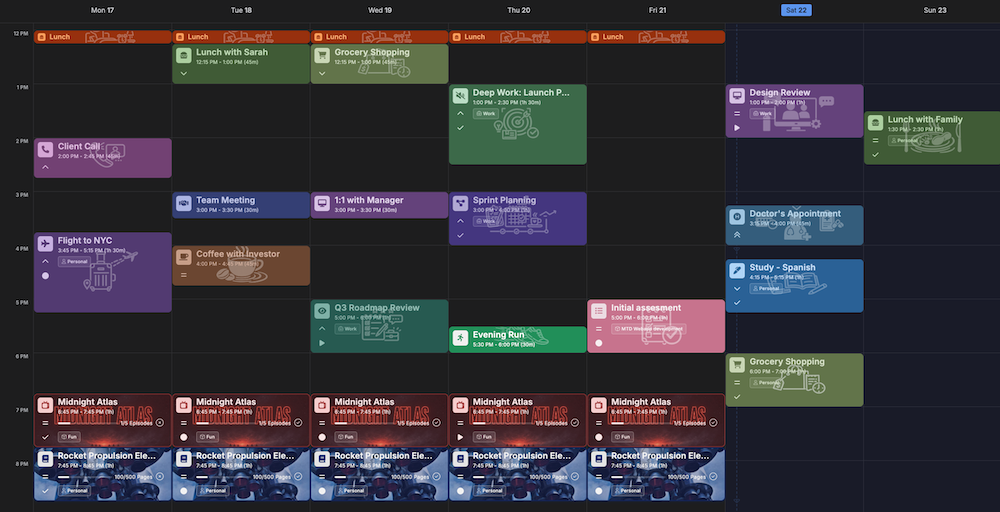
Calendar is Kalendi's home page -- your items laid out on a day, multi-day, week, or month grid.
Accessing Calendar
Click Calendar in the left toolbar (shortcut Q), or just open the app -- it's the default
page.
Views
Switch between Day, Two Days, Three Days, Week, and Month using the buttons
in the top toolbar, or press 1-5.
Navigating
Use the Previous/Today/Next buttons in the toolbar, or:
Shift+←/→-- previous / nextU-- jump to todayShift+ scroll -- navigate dates by scrollingCtrl/⌘+ scroll -- zoom the time grid; middle-click resets the zoom- Click the month/year label to open a date picker and jump straight to a date
Creating and editing items
- Click and drag on an empty slot in the grid to create an item spanning that time, or double-click a slot for a default-length item.
- Click the + button in the toolbar (
C), or the quick-add wand (A), to open a blank item. - Click an existing item to edit it.
The item editor covers:
- Details -- project, priority, milestone, status, title, description, date, an All-Day switch, start/end time with quick-duration buttons, reminder, location, and time zone.
- Schedule -- repeat settings (see below).
- Guests, Subtasks, and Files sections.
- Appearance -- item type, icon, colors, background image and its opacity, and a few display toggles, with a live preview of how the item will look.
You can also download an item as an .ics file from its editor. To delete an item, select it on
the grid and press Delete, then confirm.
Moving and resizing
On the Day/multi-day/Week grid, drag an item to a new day or time, or drag its bottom edge to change its duration -- both snap to 15-minute increments. On the Month grid, drag an item to a different day.
Repeating items
Choose Never, Daily, Weekly, Monthly, Annually, Every Weekday, or Every Weekend. Daily, Weekly, Monthly, and Annually let you set a "repeat every N" interval (every 2 weeks, every 3 months, and so on); Weekly items also let you pick specific days of the week, which combine with the interval -- so you can set up something like "every Monday, Wednesday, and Friday." Add an "ends on" date if you want the series to stop on a given day; otherwise it continues indefinitely. Repeating items are marked with a rotating-arrows icon on their card.
Tracking a habit
A repeating item can also track progress toward a goal -- reading a book, watching a series, learning something, or attending a class. Set the overall target (like a total page count), and each occurrence's card gets a progress bar and a check button to mark that day done -- click again to undo it.
All-day items
Turn on the All-Day switch to drop the time fields; these items show in their own strip above the time grid instead of at a specific hour.
Reminders
Set a reminder for Don't remind, At event time, 5/10/15/30 minutes, or 1 hour before -- it arrives as a browser push notification.
Subtasks
Add a checklist of subtasks to an item from its editor. If the item's status is a Done-type status and you uncheck one of its subtasks, the item moves back to an In Progress status automatically.
Notes
Press N, or click the notes icon in the toolbar, to open the notes panel alongside the
calendar. Drag a note from it onto the grid to turn it straight into a calendar item.
Search
Press Ctrl/⌘ + F to search across your items by keyword.