Search
Search finds items by keyword across your whole account -- not just what's currently on screen -- and lets you jump straight to one or open it for editing.
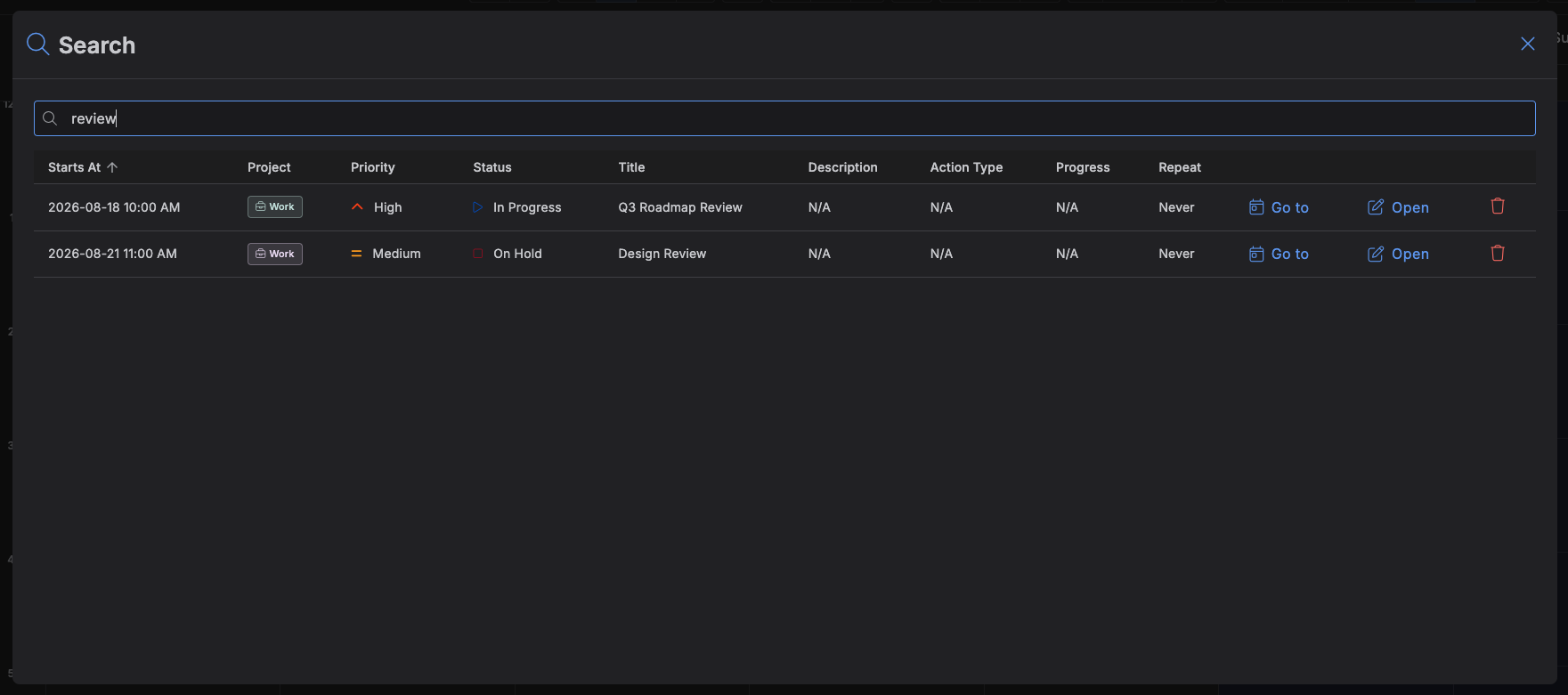
Opening the dialog
Press Ctrl/⌘ + F, or click the magnifying-glass icon in the top toolbar. The keyword field
is focused automatically. Close it with Escape, by clicking outside the dialog, or with its X
button.
Searching
Type at least 3 characters into the keyword field -- Kalendi matches against each item's title and description and lists every match in a table, regardless of date. Typing continues to refine the results as you go.
Results table
Each row shows the item's start date/time, project, priority, status, title, a trimmed excerpt of its description, action type and progress (for habit-tracking items), and repeat frequency. Click a column header to sort by Starts At, Priority, Status, or Title.
Each row also has three actions:
- Go to -- jumps the Calendar to that item's date and time and closes the dialog, without opening it for editing.
- Open -- opens the item in the Create/Edit Item dialog and closes Search.
- Delete (trash icon) -- deletes the item after confirmation, removing it from the results list immediately.