Item
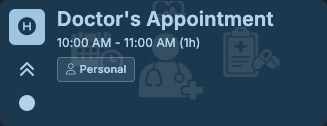
An item is Kalendi's core building block -- a single task, event, meeting, birthday, habit, or anything else you schedule. Every item lives inside a project, optionally under one of that project's milestones, and shows up as a card on both Calendar and Kanban.
How an item appears
An item has two main columns, which have their own rows.
- Indication column (left)
- Information column (right)
Elements and rows in both columns may be hidden based on the duration of the item and the zoom level (if applicable for the view) to accommodate visual representation.
Indication column
This column shows you related indications as follows:
- Item Icon
- Priority
- Status
- Repeated Item / Action-based Item
Information column
This column shows you related information as follows:
- Item title
- Start time, end time, and duration
- Progress bar if the item is action-based and relevant information about it along with mark done button.
- The project which the item belongs to.
Repeating items
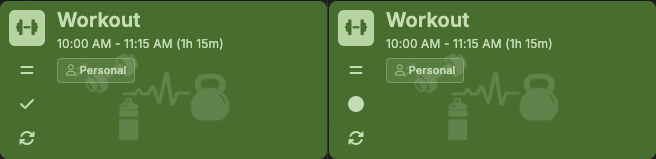
Items can repeat on a schedule -- Daily, Weekly, Monthly, Annually, Every Weekday, or Every Weekend -- each with a repeat interval (every 2 weeks, every 3 months, and so on) and, for Weekly, specific days of the week that combine with that interval. Add an end date to stop the series on a given day, or leave it open to repeat indefinitely. A repeating item's card is marked with a rotating-arrows icon in its Indication column.
Repeated items allow you to use the statuses on them for the current week. Since a single repeating item spans many dates, its Status field is hidden in the Create/Edit Item dialog -- each occurrence tracks its own status instead, set directly from the Kanban board. Kanban only shows the current week, so that's the only window you can update an occurrence's status in; trying to change one from outside it shows a message pointing you back to the current week.
Action-based items
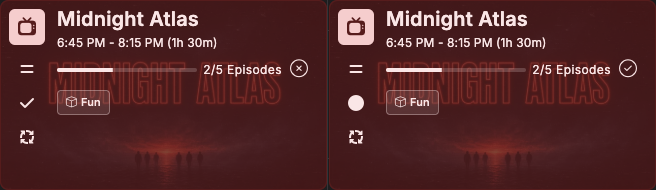
Action-based items are repeating items that also track progress toward a goal -- reading a book, watching a series, learning something, or attending a class. They use per-occurrence statuses the same way ordinary repeating items do, but on top of that, each occurrence's card also shows:
- The Progress Bar -- visual feedback for how far along you are toward the overall Total set in the item's Action section.
- The Mark Done button -- marks that day's occurrence done (or undoes it) directly from the card, without opening the Create/Edit Item dialog.
What an item contains
Where most calendar or task apps give you a title, a date, and maybe a note, a Kalendi item is far richer -- scheduling, guests, subtasks, file attachments, a Pomodoro focus timer, habit tracking, and full visual appearance controls all live on the same item, instead of being spread across separate tools. The Create/Edit Item dialog organizes all of that into sections:
| Section | Purpose |
|---|---|
| Details | The core fields every item has -- Project, Priority, Milestone, Status, Auto Mark Done, Title, Description, Date, All Day, Time, quick-duration buttons, Reminder, Location, and Time Zone. |
| Schedule | Repeat settings -- see Repeating items above. |
| Action | Shown once the item repeats in some form -- turns it into a habit tracker with an Action Type, an overall Total, and a per-occurrence count. See Action-based items above. |
| Guests | People invited by email, each with a response status (Awaiting response, Accepted, Declined, Tentative). |
| Subtasks | A checklist for the item -- add, check off, rename, and remove rows. Has its own standalone popup too; see Editing an item below. |
| Focus Timer | An optional Pomodoro timer for working the item -- a toggle to enable it, plus break interval and break duration in minutes (25/5 by default). |
| Files | Up to 5 attachments. |
| Appearance | Item Type, Icon, Colors, Background Image and its opacity, and the Show Background / Hide Info / Hide Icons toggles that control how the item looks -- see How an item appears above. |
| Preview | A live, non-interactive render of the item exactly as it'll appear on the calendar, updating as you edit any of the sections above. |
Editing an item
Items are created and edited in the Create/Edit Item dialog -- it's the same dialog either way, titled Create New Item or Edit Item to match.
- Click an existing item on the Calendar grid, a Kanban card, or a row in a milestone's item table to open it for editing.
- Press and hold the right mouse button on any of those to open Hotbox instead, for quick changes to Status or Priority (or to jump to a link, or export the item) without opening the full dialog.
To create a new item, click the + button in the top toolbar (or press C), click the
quick-add wand (A) for Quick Add, click-and-drag or
double-click an empty slot on the Calendar grid, or drag a note
onto the grid or a Kanban column.
If all you need is to check something off, Ctrl/Cmd + double-click an item -- on Calendar or
on a Kanban card -- to open its Subtasks checklist directly,
without the rest of the dialog. It's the same list as the Subtasks section above, saving changes
immediately with no Save button. A plain double-click still opens the full Create/Edit Item
dialog. (Ctrl/Cmd + double-click on a plugin-created item shows a plugin-info message instead
-- Subtasks isn't reachable for those.)