Kanban
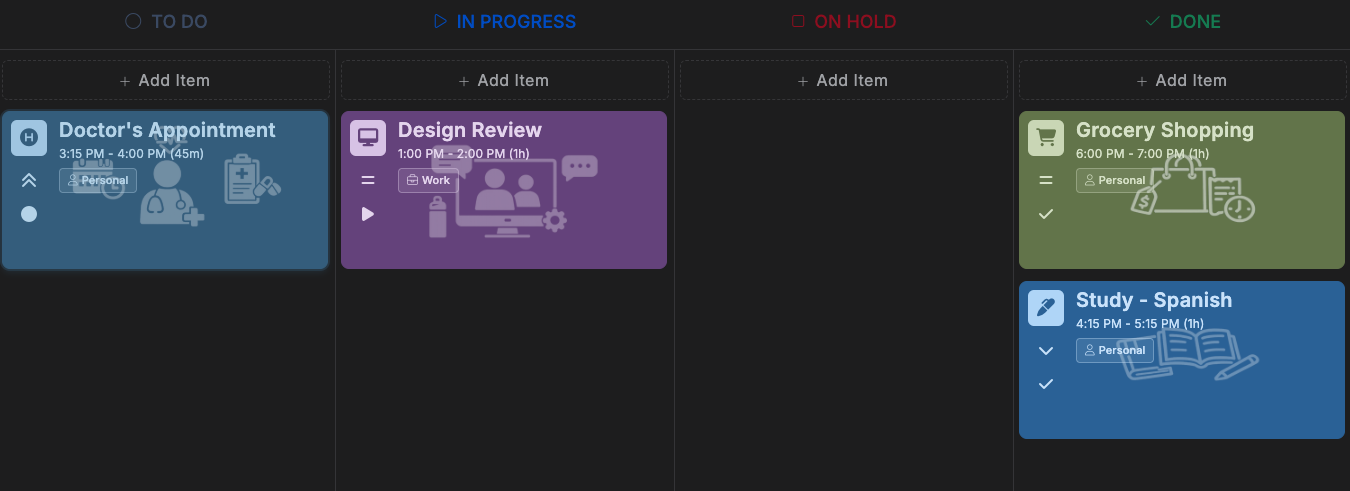
Kanban shows today's items as cards, organized into columns by status.
Accessing Kanban
Click Kanban in the left toolbar.
The board
Each column is one of your statuses -- its title, color, and icon come straight from Settings → Status. A card shows the item's type icon, priority icon, status icon, title, time and duration, and its project name. Items you're tracking progress on (like a recurring habit) also show a progress indicator on their card.
- Add an item -- click Add Item at the bottom of a column, or double-click empty space in it. The new item starts out with that column's status already set.
- Move an item -- drag its card into a different column to change its status.
Use the project filter in the top toolbar to focus the board on specific projects, and the "Sort by priority" toggle to switch card order within each column between priority-first and time-first.
Subtasks and status
If an item has subtasks, dragging it into a Done-type column is blocked until every subtask is checked off. On the flip side, unchecking a subtask on an item that's already in a Done column moves it back to an In Progress column automatically.
Repeating items
Whether repeating items show up on the board is controlled by two toggles under Settings → User Account Settings: "Show Repeated Items in Kanban" for ordinary recurring items (like a weekly meeting), and "Show Action Based Repeated Items in Kanban" for recurring items you're tracking progress on (like a daily habit).